Key Takeaways
-
Making your Twitter (X) account private ensures only approved followers can see your posts, improving your privacy and control.
-
You can enable privacy settings in just a few steps via Settings → Privacy and Safety → Audience and Tagging.
-
When your account is private, your tweets won’t appear in public search results or be accessible to non-followers.
-
Switching to a private account may reduce your content reach, engagement, and discoverability.
-
You can switch back to a public account anytime if you want to grow your audience again.
-
Reviewing follower requests regularly is essential to maintain a safe and trusted network.
Before Going Private: What Others Can See on a Twitter Account
What people see on a Twitter account depends entirely on your privacy setting.
If Your Twitter Account Is Public
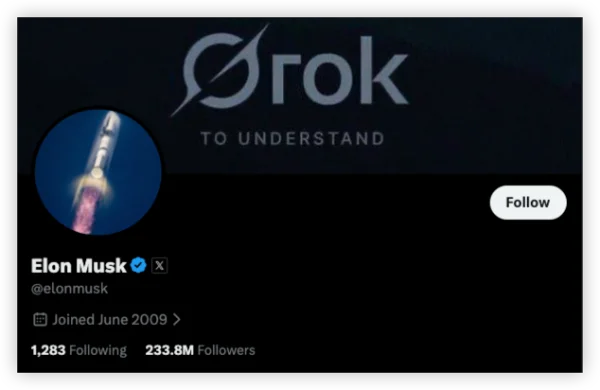
Anyone can see:
-
Tweets and replies
-
Likes and reposts
-
Media (photos/videos)
-
Follower and following lists
-
Profile bio and header
-
Past tweets (even years old)
Even users without a Twitter account can view your content.
What people see depends entirely on your privacy setting.
If Your Twitter Account Goes Private
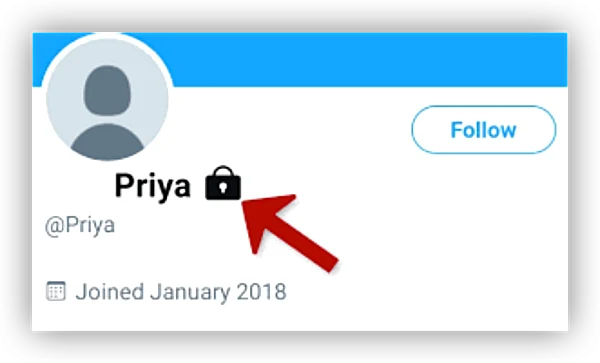
Non-followers can see:
-
Profile photo
-
Bio
-
Username and handle
-
Follower/following count
-
Lock icon indicating protection
They cannot see:
-
Tweets
-
Replies
-
Likes
-
Media
-
Threads
Only approved followers get full access.
On Mobiles: How to Make Your Account on Twitter Private
Make an Twitter Account Private on iOS
-
Open the Twitter (X) app
-
Tap your profile picture → Settings & Support
-
Choose Settings and privacy
-
Go to Privacy and safety → Audience and tagging
-
Turn on Protect your Tweets
📌 Changes apply instantly across all devices.
Make an Twitter Account Private on Android
-
Open the Twitter (X) app and tap your profile icon
-
Go to Settings & Support → Settings and privacy
-
Tap Privacy and safety
-
Select Audience and tagging
-
Toggle on Protect your Tweets
✅ Your tweets are now visible only to approved followers.
On Desktop: How to Make Your Account on Twitter Private
Make Your Twitter Account Private on Windows
-
Open a browser and go to twitter.com
-
Log in and click More (left sidebar)
-
Select Settings and privacy
-
Click Privacy and safety
-
Open Audience and tagging
-
Check Protect your Tweets
🔒 Your account is now private.
Make Your Twitter Account Private on Mac
-
Open Safari, Chrome, or Firefox
-
Visit twitter.com and sign in
-
Click More → Settings and privacy
-
Go to Privacy and safety
-
Select Audience and tagging
-
Enable Protect your Tweets
💡 Works the same on macOS as Windows.
After You Go Private on Twitter: What You can See
Once your account is private, several things change immediately:
-
Existing followers keep access
-
New users must request to follow
-
Tweets stop appearing in Google search
-
Retweets by followers are restricted
-
Quote tweets by non-followers are blocked
Your older tweets also become private retroactively.
Public vs Private Twitter Account: Which One Is Better?
Choosing between a public and a private Twitter (X) account affects visibility, reach, privacy, and control.
Core Differences at a Glance
| Aspect | Public Twitter Account | Private Twitter Account |
|---|---|---|
| Tweet visibility | Anyone on the internet | Approved followers only |
| Google search indexing | ✅ | ❌ |
| Follow process | Instant | Requires approval |
| Retweets & quote tweets | ✅Fully enabled | Restricted |
| Replies visibility | Public | Followers only |
| Profile discoverability | High | Limited |
| Control over audience | Low | High |
Public Twitter Accounts: Pros and Cons
👍Pros
-
Anyone can view, like, reply to, and share your tweets
-
Higher visibility in Twitter and Google search results
-
Faster follower growth and broader reach
-
Ideal for creators, brands, and public figures
👎Cons
-
Less privacy; tweets are visible to everyone
-
Higher risk of spam, harassment, and trolling
-
Content can be screenshotted or reshared without control
-
Easier target for impersonation or misuse
Private Twitter Accounts: Pros and Cons
👍Pros
-
Only approved followers can see your tweets
-
Better privacy and content control
-
Fewer bots, spam, and unwanted interactions
-
Safer environment for personal sharing
👎Cons
-
Tweets don’t appear in public search results
-
Slower follower growth due to approval process
-
Limited reach and engagement
-
Not suitable for promotion or public branding
What is a Private Account on Twitter/X?
A private Twitter account (also called a protected account) limits who can see your content.
When your account is private:
-
Only approved followers can see your tweets
-
New followers must send a follow request
-
Your tweets won’t appear in public search results
-
Non-followers see a lock icon and a “These Tweets are protected” message
This setting is ideal if you want to share thoughts without broadcasting them publicly.
Can You View a Private Twitter Account (and How)
According to X's official privacy rules, you cannot view a private account's protected content without the owner's explicit approval. Tweets from private accounts:
- Don't appear in public searches, timelines, or Google results.
- Can't be viewed via direct links, embeds, or third-party tools that scrape public data.
- Aren't accessible even if you know the username—trying to load the profile shows the lock screen
How to View a Private Twitter Account Legally
The intended (and only legitimate) method is:
- Log into your X account.
- Visit the private profile.
- Click "Follow" to send a follow request.
- Wait for the owner to approve it (they get a notification and can accept/deny).
- Once approved, you gain full access (and they can revoke it anytime by removing you).
Risks of Private Twitter Account Viewer
Many sites, YouTube videos, apps, and tools claim to let you "view private X accounts without following" (e.g., Tweetgoon, uMobix, GhostX, or various "anonymous viewers"). These often:
- Only work for public accounts (they're just proxies or anonymous browsers for non-private content).
- Promise access to private tweets but deliver nothing (or show cached/old public data if the account was briefly public).
- Are scams, malware risks, or phishing attempts—many require logins, payments, or downloads that steal credentials.
- Occasionally exploit rare old bugs (like past subdomain glitches), but X patches these quickly—no reliable exploits exist.
Extra Tips for a Private Twitter Account
-
Review followers regularly
-
Disable photo tagging
-
Limit DMs to followers only
-
Turn off location data
-
Avoid linking sensitive accounts in bio
-
Use a VPN like VIF VPN when accessing Twitter on public Wi-Fi
These steps reduce tracking and unwanted exposure.
FAQs
Can people still find my profile if my account is private?
Yes, your profile (username, bio, and profile picture) is still visible. However, your tweets and interactions are restricted to approved followers only.
Can I switch back to a public account later after I make my Twitter account private?
Absolutely. You can turn off the “Protect your posts” option anytime to make your account public again.
Can people retweet my private tweets?
No. Private tweets cannot be retweeted, shared, or viewed by non-followers.
Will my tweets show up on Google or other search engines after going private?
No. Tweets from private accounts are not indexed or displayed in search engine results.